How To Draw Banners On Your iPad Pro

Hey letter lovers! I want to show you how to create a banner in three different ways using your iPad Pro, Apple Pencil and Procreate App! This technique is great for any of you who are just starting out and want to add some fun illustrative elements to your iPad lettering. Any questions? Leave a comment below!
xo,
Molly
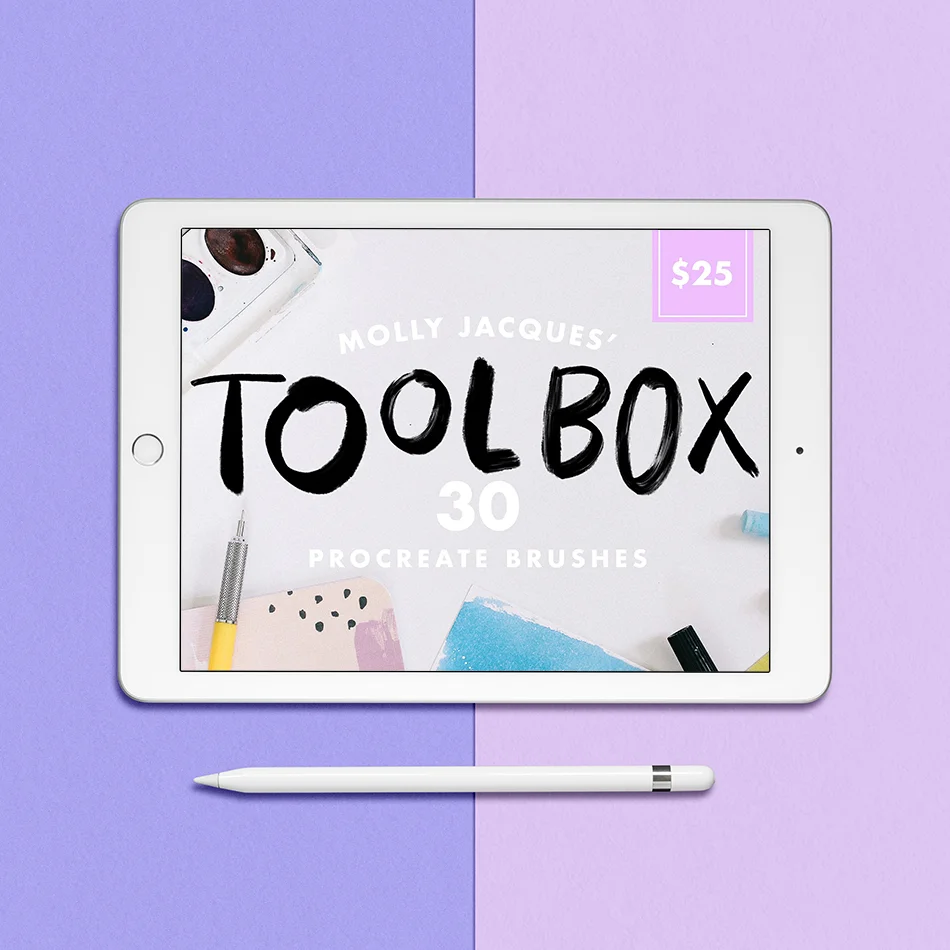
30 Procreate Artistic Brushes
It's HERE! My newest brush pack for Procreate App. Have you ever wondered how I create lettering on my iPad Pro that looks like it was straight from my sketchbook? This brush pack is my secret. I created every one of these brushes to meet a specific aesthetic of lettering that I work in - I hope you enjoy them! Watch the video below to learn how to install your new brushes!
Included in this Download:
30 custom built brushes to get the look and feel of my favorite lettering styles (go check out the work I've done with these brushes here!) The brushes are split into three categories: Ink, Paint, and Pencil.
Requirements:
iPad Pro Apple Pencil (or similar pressure-sensitive stylus) The Procreate App for iPad
Pro Tips:
The brushes in this pack include a variety of fun textures and effects! The pencil brushes were created to be used at a smaller point size, with the exception of the shading brushes. The ink brushes work best at medium to large point size to really achieve the effect I designed them for. The paint brushes work really well at medium to large point size as well to showcase texture and transparency. Of course, I encourage you to experiment with the brushes to achieve the effect that YOU want. Enjoy!
IMPORTANT: These brushes are not compatible with Adobe Photoshop, they are created specifically for Procreate App on the iPad Pro. To make the installation process easier, unzip the folder on your desktop and save unzipped folder in your iCloud Drive, Dropbox, Google Drive, etc. (or use a third party app to unzip the folder directly on your iPad Pro). You can access your brushes from any of those locations on your iPad Pro. Instructions for installation are included with your download but please reach out with any questions!
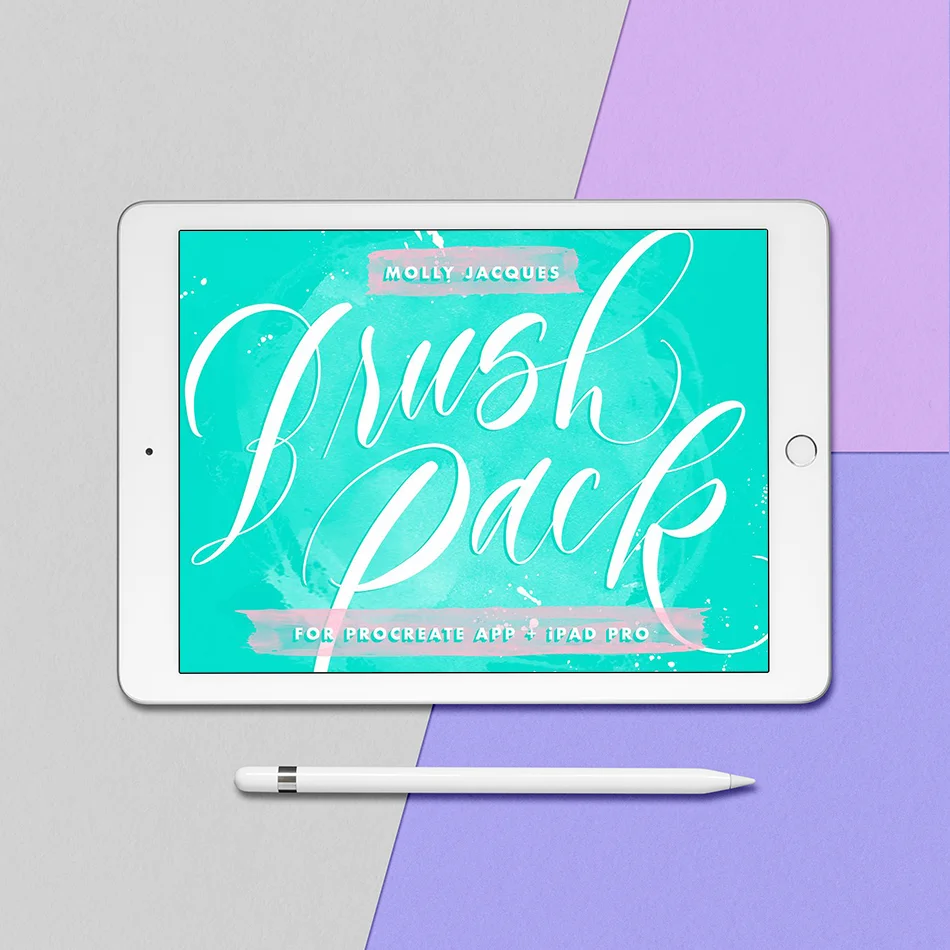
17 PROCREATE LETTERING BRUSHES
Okay, you've been seeing it all over the place - iPad Lettering! I've absolutely fallen in love with creating realistic lettering on my iPad and I know you will too! With this custom Procreate brush pack, you can get the look of handmade lettering, all on your iPad!
INCLUDED WITH THIS DOWNLOAD:
17 custom built brushes to get the look and feel of my favorite lettering styles
Installation Guide PDF along with my helpful video
REQUIREMENTS:
iPad Pro
Apple Pencil (or similar pressure-sensitive stylus)
The Procreate App for iPad
These brushes are not compatible with Adobe Photoshop, they are created specifically for Procreate App on the iPad Pro. To make the installation process easier, unzip the folder on your desktop and save unzipped folder in your iCloud Drive, Dropbox, Google Drive, etc. (or use a third party app to unzip the folder directly on your iPad Pro). You can access your brushes from any of those locations on your iPad Pro. Instructions for installation are included with your download but please reach out with any questions!
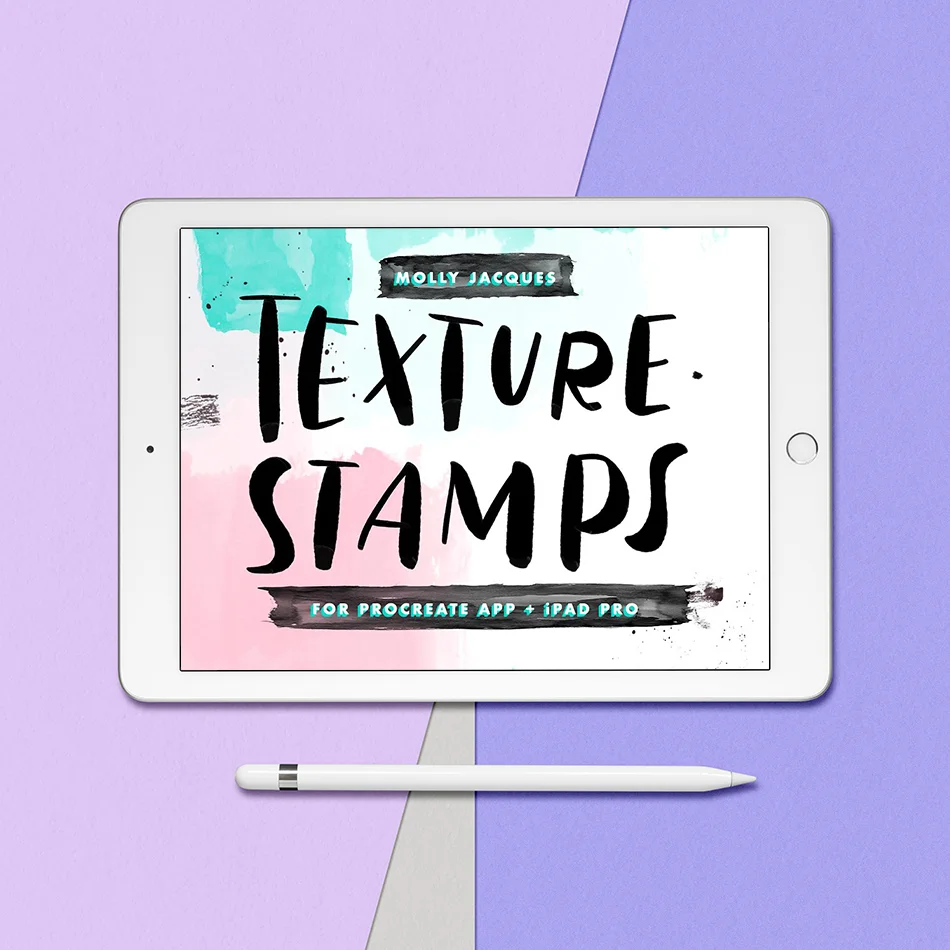
17 Procreate Texture Brushes
Ready to really get creative with your iPad Pro illustrations? I've designed 17 custom texture brushes to use on your designs that will surely give them a 'hand-painted' look! Each brush is meant to be "stamped" with one click of the Apple Pencil to maintain the texture and details of the design. To create variation between the stamps, try adjusting the size and opacity - you'll be surprised how much variation you can get with one brush! Want to get the full experience? Go pick up my Lettering Brush Pack to add lettering on top of your textures! Watch the video below to learn how to install your brushes and use them.
Included in this Download:
17 custom built brushes to get the look and feel of a hand-painted texture installation Guide PDF along with my helpful video
Requirements:
iPad Pro Apple Pencil (or similar pressure-sensitive stylus) The Procreate App for iPad
Learn how to use all of my brushes over on my Youtube channel!
IMPORTANT: These brushes are not compatible with Adobe Photoshop, they are created specifically for Procreate App on the iPad Pro.
30 Procreate Frame Brushes
Streamline your work process of creating frames in Procreate app with just ONE CLICK! I’ve compiled images of all my favorite go-to frames and turned them into stamp brushes that are super duper easy to use and will save you time when you’re in a hurry to get things done.
Included in this Download:
30 custom built brushes to get the look and feel of my favorite hand illustrated frames.
Requirements:
iPad Pro or newest iPad model, Apple Pencil (or similar pressure-sensitive stylus) The Procreate App for iPad
Pro Tips:
With this pack, you’ll get a variety of frames to work with. Classic frames, structured, organic, and sketched. Depending on what lettering style you work in, you should be covered!
IMPORTANT: These brushes are not compatible with Adobe Photoshop, they are created specifically for Procreate App on the iPad Pro. To make the installation process easier, unzip the folder on your desktop and save unzipped folder in your iCloud Drive, Dropbox, Google Drive, etc. (or use a third party app to unzip the folder directly on your iPad Pro). You can access your brushes from any of those locations on your iPad Pro. Instructions for installation can be found here.